Introduction
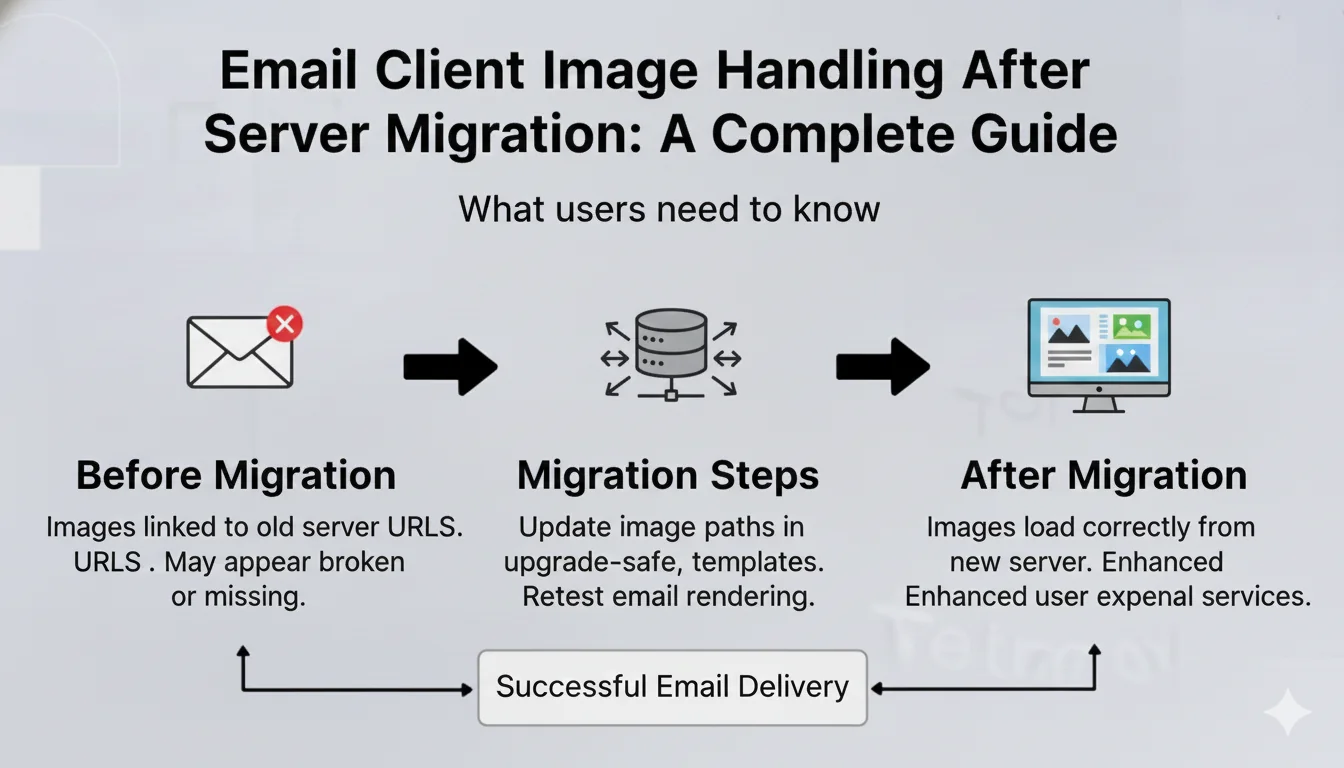
Server and domain migrations are common in modern infrastructure management, but they can introduce unexpected challenges in email delivery and display. One such challenge is how email clients handle remote images from newly migrated domains. This guide provides clarity on how different email clients manage image visibility after a domain change and what users can expect.
Understanding the Migration Impact
When an organization migrates to a new server and domain, email clients treat the new domain as a potentially new sender. This security-conscious behavior is designed to protect users from malicious content, but it can temporarily affect how images are displayed in emails.
Why Email Clients Block Images
Email clients implement image blocking as a security measure because:
- Privacy Protection: Remote images can be used to track email opens through pixel tracking
- Malware Prevention: Images hosted on malicious domains can pose security risks
- Spam Detection: Blocking images helps identify and filter spam emails
- Bandwidth Conservation: Prevents automatic loading of potentially large image files
Email Client Behavior Breakdown
Microsoft Outlook (Classic v2024)
Behavior: Microsoft Outlook Classic (2024) implements strict security controls that block remote images by default.
User Action Required:
- Users must manually select "Download Pictures" for each new email
- This action is required per email, not per sender
- Images will not automatically load in subsequent emails from the same domain
Why This Happens: Outlook Classic prioritizes security and privacy, requiring explicit user consent for each email to prevent tracking and potential security threats.
Best Practice: After migration, inform users that they may need to click "Download Pictures" for emails from the new domain. Once approved, images should display normally for that specific email.
Microsoft Outlook (New/Standard v2025)
Behavior: The newer version of Outlook (2025) has more lenient image handling policies.
User Action Required:
- Images typically load automatically without user intervention
- No manual approval needed in most cases
- Seamless experience for users
Why This Happens: Outlook 2025 uses improved security algorithms and sender reputation systems that allow trusted senders to display images automatically.
Best Practice: Users on Outlook 2025 should experience minimal disruption. If images don't load automatically, they may need to add the sender to their trusted contacts list.
Gmail
Behavior: Gmail has sophisticated image handling that typically allows images to load automatically.
User Action Required:
- Images usually load automatically without user intervention
- Gmail's proxy system helps ensure images display safely
- Minimal user action required
Why This Happens: Gmail uses a proxy system that serves images through Google's servers, which provides both security and automatic image loading. This approach protects users while maintaining a seamless experience.
Verification Note: If Gmail users report issues with image loading after migration, it may be due to:
- Temporary caching of the old domain
- Gmail's spam filters flagging the new domain
- Account-specific security settings
Best Practice: Gmail users should generally see images automatically. If issues persist, check spam folder placement and ensure the new domain is not being filtered.
Mozilla Thunderbird
Behavior: Thunderbird uses a per-sender permission system for remote content.
User Action Required:
- Users are prompted once per sender to allow remote content
- After granting permission, images will load automatically for all future emails from that sender
- One-time approval per sender domain
Why This Happens: Thunderbird balances security with user convenience by remembering user preferences per sender, reducing repeated prompts while maintaining security.
Best Practice: Inform Thunderbird users that they'll need to approve remote content once for the new domain. After the initial approval, all future emails from that domain will display images automatically.
Post-Migration Image Display Workflow
For Users
-
First Email from New Domain:
- Some clients may prompt for image approval
- Click "Download Pictures," "Load Remote Content," or similar option
- Images should display immediately
-
Subsequent Emails:
- Behavior varies by client (see breakdown above)
- Outlook Classic: Requires approval per email
- Outlook 2025: Automatic loading
- Gmail: Automatic loading
- Thunderbird: Automatic after first approval
-
If Images Don't Load:
- Check spam/junk folder placement
- Verify sender is in trusted contacts
- Review email client security settings
- Contact IT support if issues persist
For Administrators
-
Pre-Migration Communication:
- Notify users about the upcoming domain change
- Provide instructions for their specific email client
- Set expectations for temporary image loading behavior
-
Post-Migration Monitoring:
- Monitor spam folder placement rates
- Track user reports of image loading issues
- Verify email deliverability metrics
-
Domain Reputation:
- Ensure proper SPF, DKIM, and DMARC records
- Warm up the new domain gradually
- Monitor sender reputation scores
Email Compliance and Security
Standard Email Delivery Compliance
It's important to note that emails from the migrated domain are fully compliant with standard email delivery and anti-spam policies. The image blocking behavior is a client-side security feature, not an indication of email deliverability issues.
Indicators of Compliance:
- ✅ Emails are not being redirected to Spam folders
- ✅ Emails are reaching inboxes successfully
- ✅ No bounce messages or delivery failures
- ✅ Proper authentication records (SPF, DKIM, DMARC) in place
If Emails Were Non-Compliant:
- Emails would be redirected to Spam folders
- Delivery rates would drop significantly
- Bounce messages would indicate policy violations
- Sender reputation would be negatively impacted
Troubleshooting Common Issues
Issue: Images Not Loading in Gmail
Possible Causes:
- Gmail's proxy system may need time to recognize the new domain
- Temporary caching of old domain settings
- Account-specific security settings
Solutions:
- Wait 24-48 hours for Gmail's systems to update
- Check if emails are in the Spam folder
- Verify domain authentication records
- Add sender to contacts if needed
Issue: Outlook Classic Requires Approval Every Time
This is Expected Behavior: Outlook Classic (2024) requires approval per email as a security feature.
Solutions:
- Inform users this is normal behavior
- Provide quick instructions for "Download Pictures" action
- Consider recommending Outlook 2025 upgrade if feasible
- Document this as expected behavior, not a bug
Issue: Thunderbird Not Remembering Permission
Possible Causes:
- Thunderbird settings reset
- Profile corruption
- Permission not properly saved
Solutions:
- Re-approve remote content for the sender
- Check Thunderbird's remote content settings
- Verify sender address matches exactly
- Clear and re-add permission if needed
Conclusion
Email client image handling after a server and domain migration is a normal security behavior, not a deliverability issue. Different email clients implement varying levels of security controls:
- Outlook Classic (2024): Requires approval per email (strictest)
- Outlook 2025: Automatic loading (most lenient)
- Gmail: Automatic loading via proxy system
- Thunderbird: One-time approval per sender (balanced approach)
Understanding these behaviors helps set proper expectations and provides users with clear guidance. The key is communication: inform users about the migration, explain what to expect, and provide simple instructions for their specific email client.
Remember, if emails are reaching inboxes (not spam folders), the migration is successful from a deliverability perspective. Image blocking is a client-side security feature that protects users while maintaining email functionality.
Note: If you're experiencing issues with Gmail specifically, please verify the behavior as it may differ from the general patterns described. Gmail's proxy system and spam filtering algorithms are continuously updated, which may affect image loading behavior.